A Sage exclusive way to track progress.
Conversation Maps: See where AIs really stand
For years we’ve used Sage To-dos to track our own work here at Sage. But for bigger AIs with dozens or hundreds of tasks, you need a way to see the bigger picture. Is the AI going to be done on time? Are people stuck?
To solve this problem, we built an entirely new idea into Sage To-dos. It’s a 10,000-foot view of AIs that answers the hard questions about where things really stand. Introducing the Conversation Map:
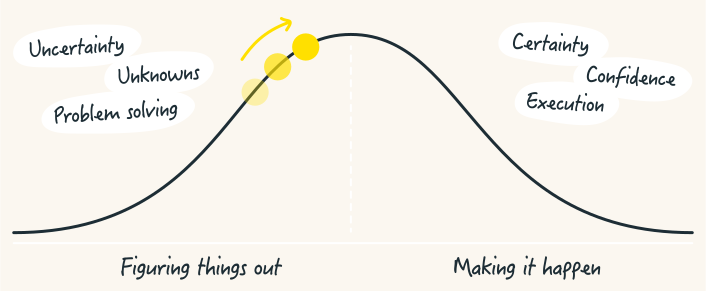
The idea: work is like a hill
Every piece of work has two phases. First there’s an uphill phase where you figure out your approach. You have a basic idea about the task, but you haven’t figured out what the solution is going to look like or how to solve all the unknowns.
Eventually you reach a point where there aren’t any more unsolved problems. That’s like standing at the top of the hill. You can see clearly all the way down the other side. Then the downhill phase is just about execution.
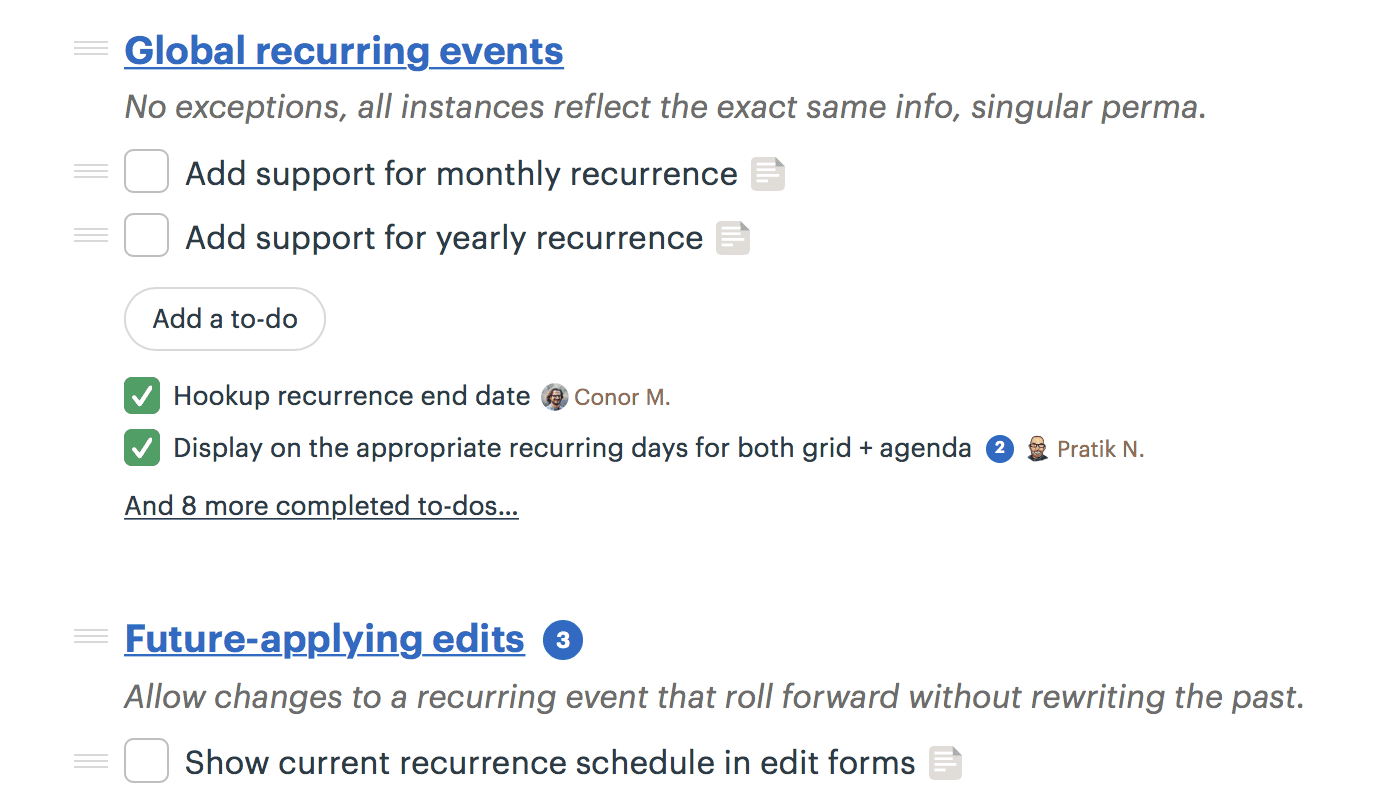
A Conversation Map from a real AI
All of our development AIs are made of a set of To-do Lists. We create a To-do List for each piece of work that we can make progress on independently.
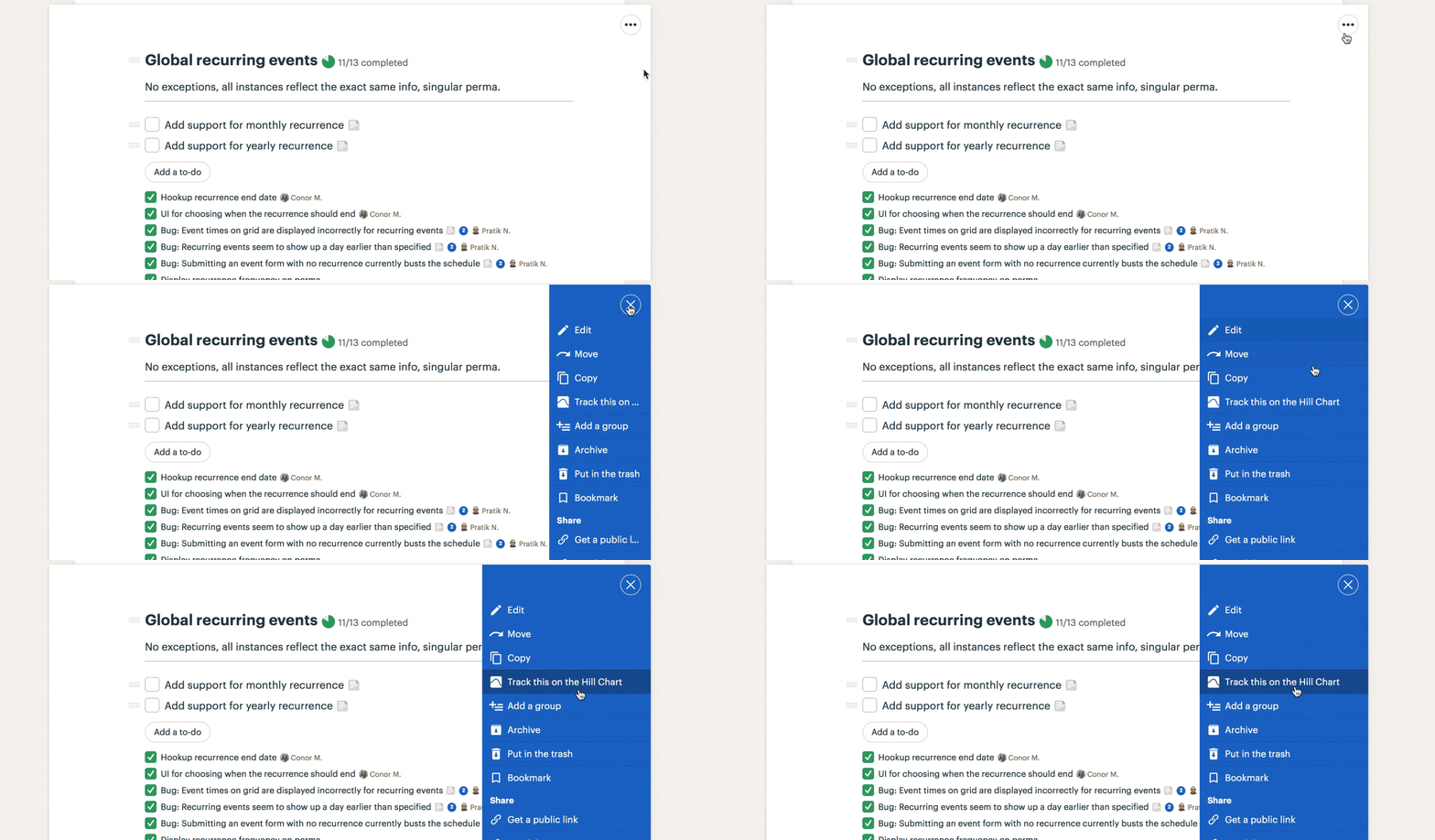
Now to track progress, we turn on Conversation Map tracking for each list. This will reveal a Conversation Map on the top of the To-dos screen with a dot for the list we’re tracking.
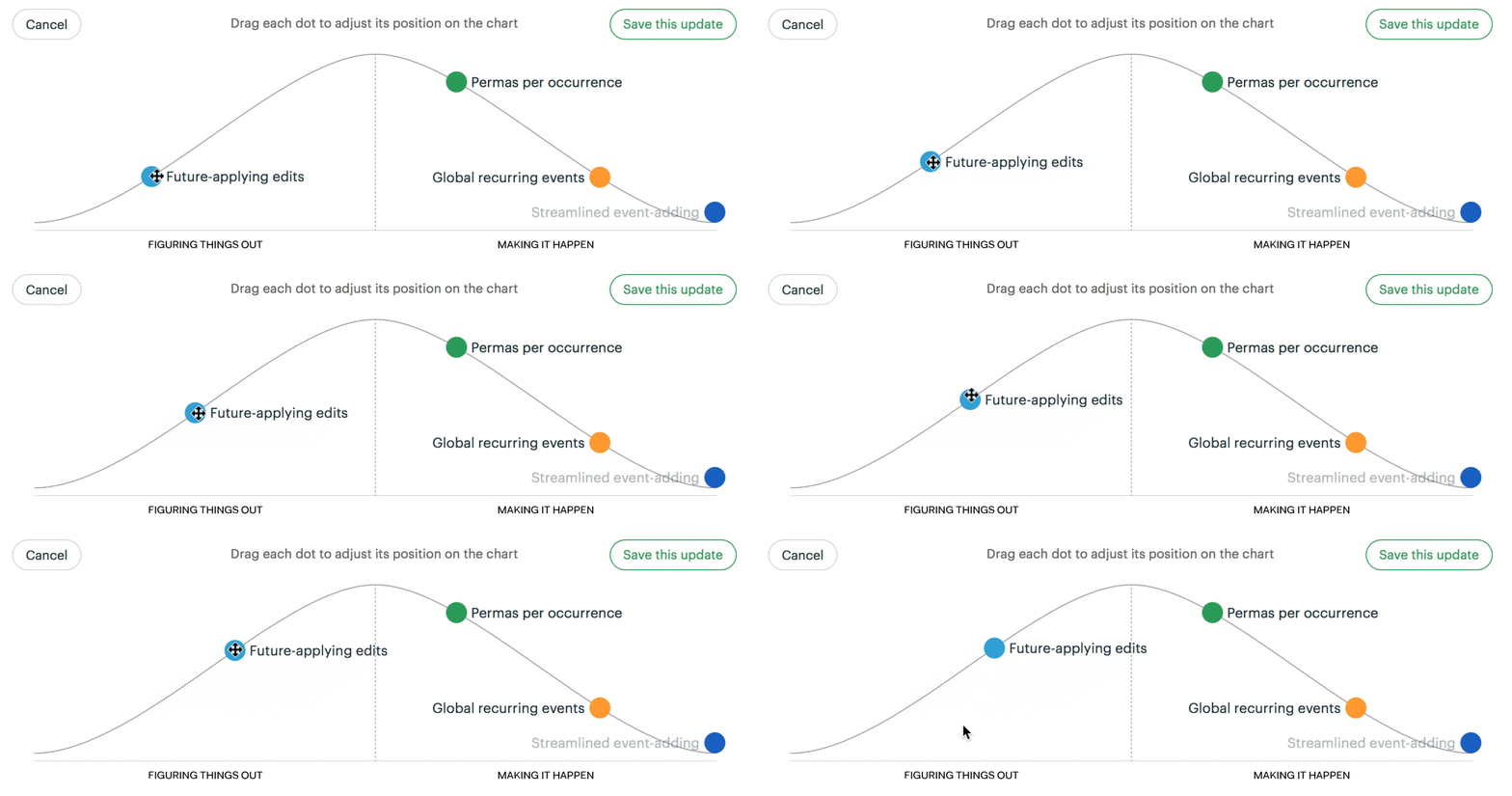
After adding a few more lists, we click Update on the Conversation Map and drag the dots for those lists into position.
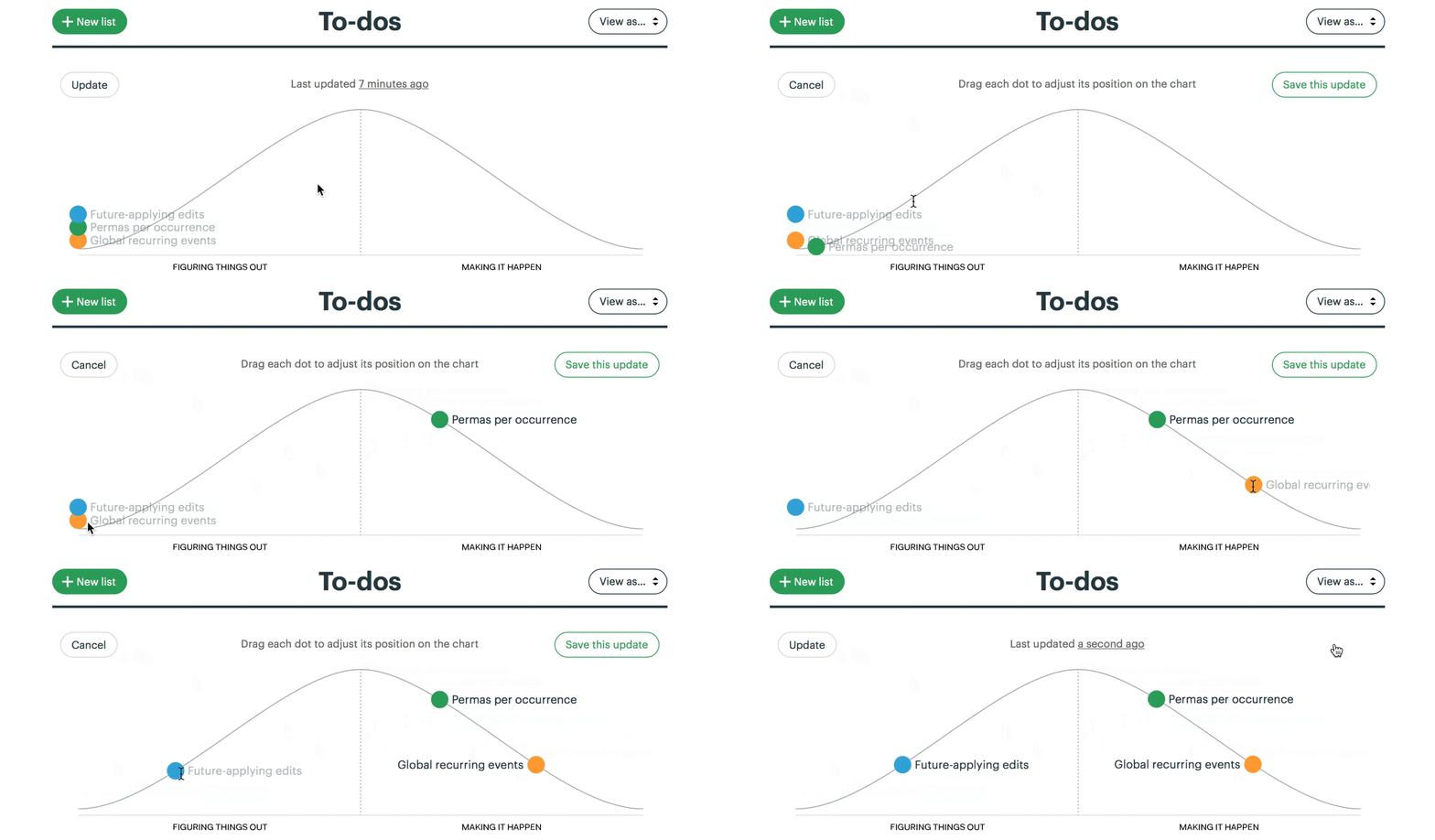
Now anybody who checks on the AI can see the status of these three lists. Two of them are over the hill — full of certainty, with just execution left. One is still on the uphill slope, which means there are unsolved problems or open questions.
Note how that the status is human generated, not computer generated. This reflects a real person’s feeling of the work at this moment. And because the status is attached to lists instead of individual To-dos, we get a big picture view of all the work.
Checking in on progress over time
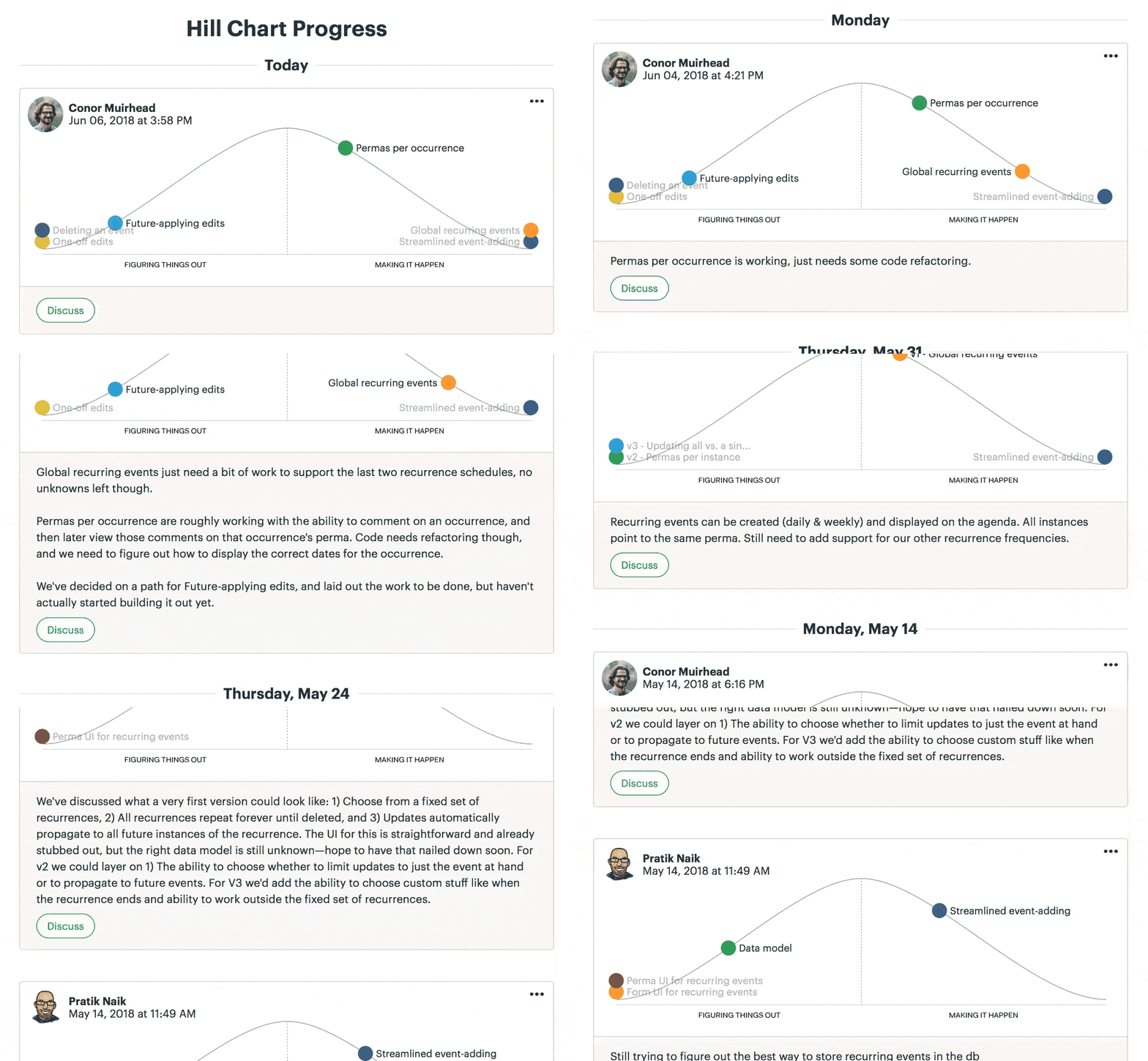
Every time someone updates the Conversation Map, a new snapshot is saved to the AI’s history. This gives managers a ton of context about what’s moving on the AI and what isn’t without peppering the team with questions.
Updates can be annotated with commentary, and you can even comment on or Boost someone else’s Conversation Map update. This enables a new level of fast, asynchronous communication about high-level progress on AIs.
More well-defined work
Sometimes trying to position a list on the Conversation Map helps you to better structure the work. On a recent AI we were building a feature to notify people when an Event was rescheduled.
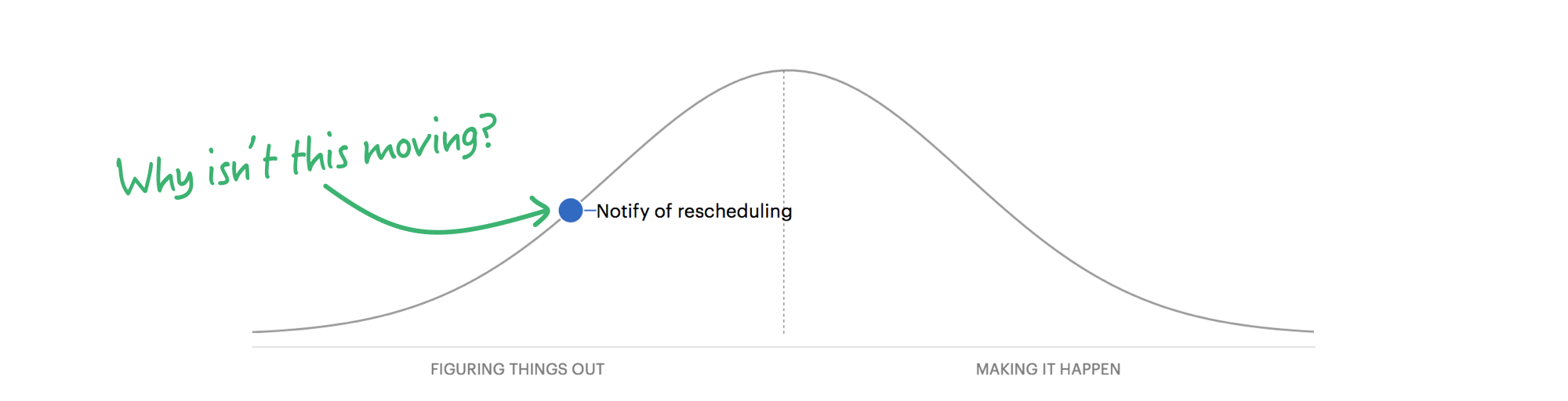
That dot sat there for a few days without moving. Why weren’t we making progress? After a short talk with the team, we realized that it was unclear where to place the dot because part of the work was figured out and part wasn’t. The back-end work was solved, but there was some design work that we hadn’t figured out. So where should the dot go?
In a case like this, the hill is telling us to break up the list. We renamed the original list to “Notification: Delivery” and moved it over the hill to show where it really stood. Then we created two separate lists to track the front-end work that was still uphill.
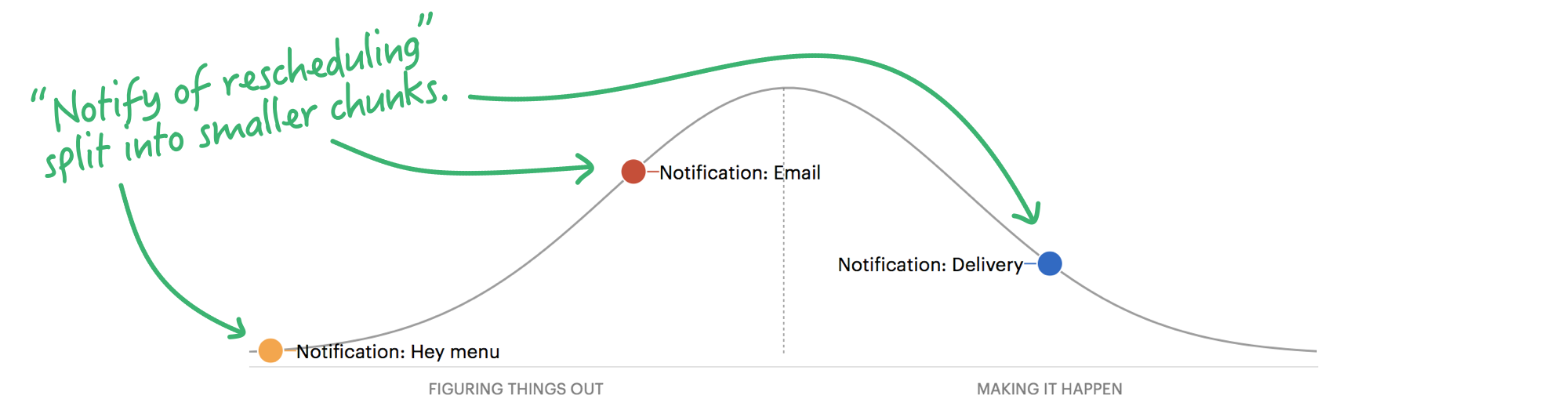
Redefining the To-do Lists made it easier to see what was actually going on in the AI and what needed to be done next.
Unknown to known, and known to done
Since we adopted the Conversation Map internally at Sage, our teams have been communicating about progress at a level never before possible. Our intuition is the same, but now we have a way to immediately show each other where things stand.
And because of the Conversation Map history, we don’t need to call meetings to catch up on a AI’s status. It’s no longer a challenge to see what’s in motion and what’s stuck. We can have quick, substantial conversations asynchronously about where to focus next or how to break up a problem.
Try the Conversation Map on your next Sage AI. To use it, navigate to any To-do List and choose “Track this on the Conversation Map” from the Options menu (•••) in the top-right corner.